



Theme Documentation

Overview
Solid Industries is a modern, performance‑focused HubSpot CMS theme designed for industrial, manufacturing, construction, engineering, logistics, and B2B service companies. The theme emphasizes strong visual hierarchy, bold typography, modular sections, and conversion‑driven layouts suitable for corporate and industrial websites.
Theme Capabilities
-
Fully drag‑and‑drop HubSpot CMS theme
-
Optimized for industrial & B2B websites
-
Modular section‑based page building
-
Responsive across desktop, tablet, and mobile
-
Global theme settings for branding consistency
-
Performance‑optimized layouts
-
SEO‑friendly structure
-
Reusable modules and flexible sections
Theme Installation
-
Log in to your HubSpot Portal
-
Navigate to Content → Design Manager
-
Upload or install the Solid Industries theme
-
Once installed, the theme will appear under Themes when creating new pages
Theme Settings
The Theme Settings allow you to globally customize your website’s styling, including fonts, colors, spacing, buttons, forms, and more. Any changes made here will automatically apply across all pages using this theme, ensuring a consistent and professional industrial look.
For any additional customization options required in the theme settings, please contact us at:
📧 resource@straightgrowth.com
How to Access Theme Settings
Follow these steps to access your theme settings in HubSpot:
-
Click the Settings icon in the main navigation bar of your HubSpot account.
-
In the left sidebar menu, navigate to Content > Themes.
-
Select your Industry / Factory Theme from the list.
-
Click Edit theme settings to begin customization.
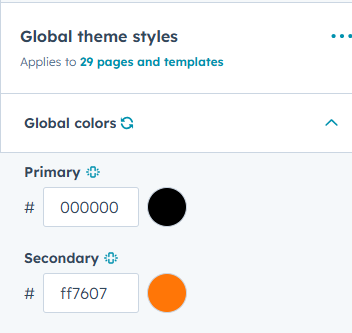
Global Colors
Use this section to define and manage the primary brand colors used throughout your website.
These colors will be applied across templates, modules, buttons, links, and other components to maintain a consistent industrial brand identity.
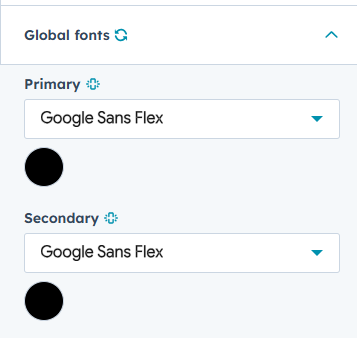
Global Fonts
Here, you can configure the typography used across your website:
-
Primary Font (Body Text)
Select any Google Font, along with its color, size, weight, and line height. -
Secondary Font (Headings)
Choose a separate Google Font for headings (H1–H6) and define its color and style.
This flexibility allows your site to reflect a strong, professional, and modern industrial appearance.
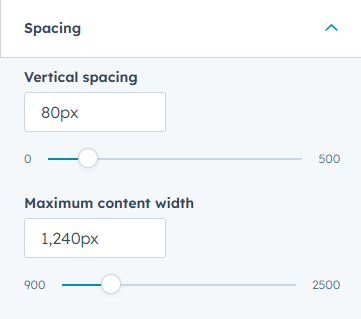
Spacing
Control the overall layout spacing of your website from this section:
-
Container width
-
Vertical spacing
-
Horizontal spacing
Adjusting these values helps maintain proper alignment, readability, and layout consistency across all screen sizes.
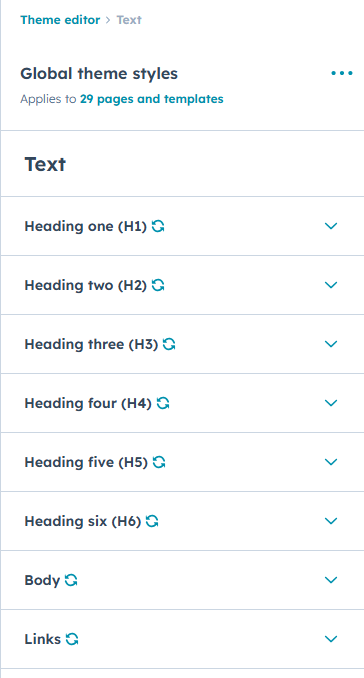
Text
This section allows you to fine-tune typography settings globally:
-
Body Text
-
Font family (Google Fonts)
-
Font size
-
Color
-
Line height
-
Font weight
-
Option to adjust font size for mobile devices
-
-
Headings (H1–H6)
-
Font family
-
Font size
-
Color
-
Line height
-
Font weight
-
-
Links
-
Link color
-
Link hover color
-
All text styles defined here will apply consistently throughout the theme.
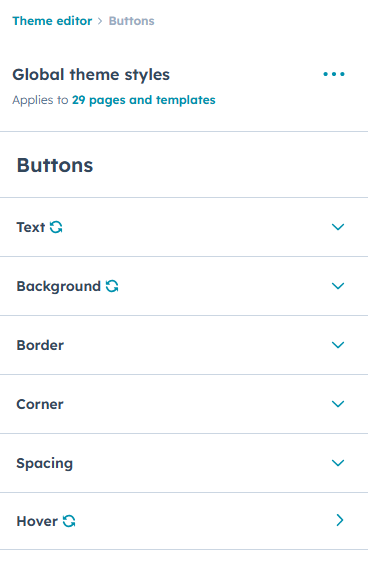
Buttons
Define the global appearance of buttons used across your website, including:
-
Background color
-
Text color
-
Border radius
-
Hover states
This ensures all call-to-action buttons maintain a unified and professional style.
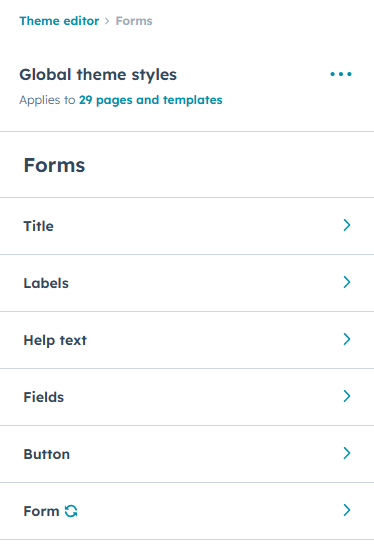
Forms
Customize the appearance of HubSpot forms used within the theme:
-
Form background color
-
Field background color
-
Label color
-
Input styles
These settings help align your forms with the overall industrial design and branding.
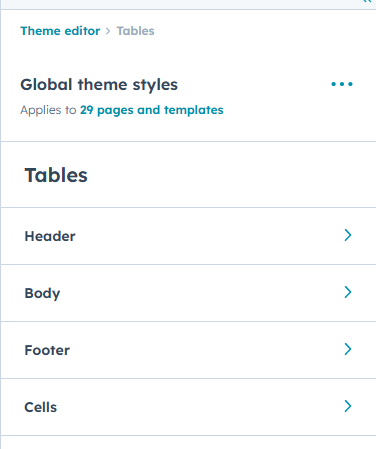
Tables
Use this section to control the styling and appearance of tables used across your website, ensuring clarity and readability for technical or data-driven content.
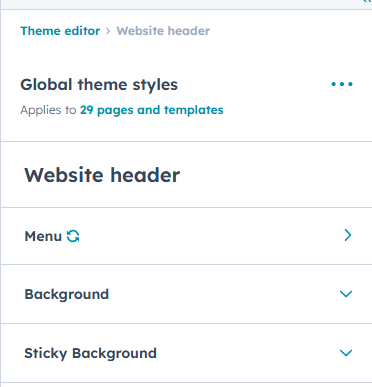
Website Header
The Website Header settings allow you to customize the global header and navigation menu, including:
-
Header background color
-
Text color
-
Menu link color and hover color
-
Dropdown icon color
-
Child menu background color
-
Child menu link color
-
Child menu hover background and text color
This helps create a strong and intuitive navigation experience.
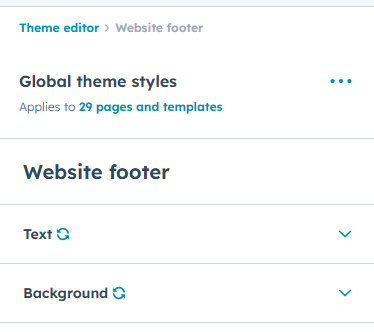
Website Footer
Here, you can define the global styling for the website footer, ensuring consistency across all pages.
Page Templates
When creating a new page in HubSpot, you can choose from a set of pre-designed industry-focused page templates included with the theme.
How to Select a Page Template
-
Log in to your HubSpot account.
-
Navigate to Content > Website Pages or Landing Pages.
-
Click Create to start a new page.
-
In the page creation screen, select a template from the available theme templates.
Blog Templates
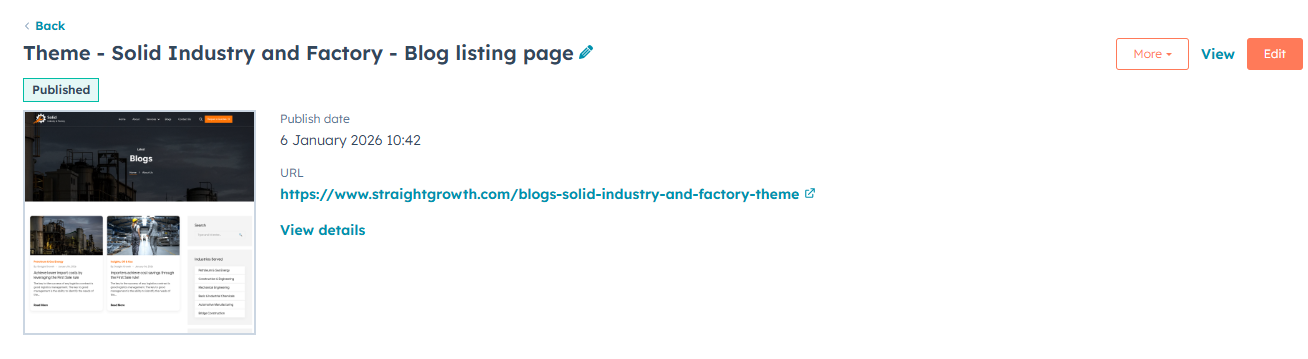
Blog Listing Template
-
Click the Settings icon in the main navigation bar.
-
Navigate to Content > Blog.
-
In the Current View section, select the blog you want to edit.
-
In the Blog Listing section, click Actions > Change template.
-
Scroll down, click Advanced options, and select Use different template.
-
Choose the Industry Theme – Blog Listing Template.
-
Click Use Template.

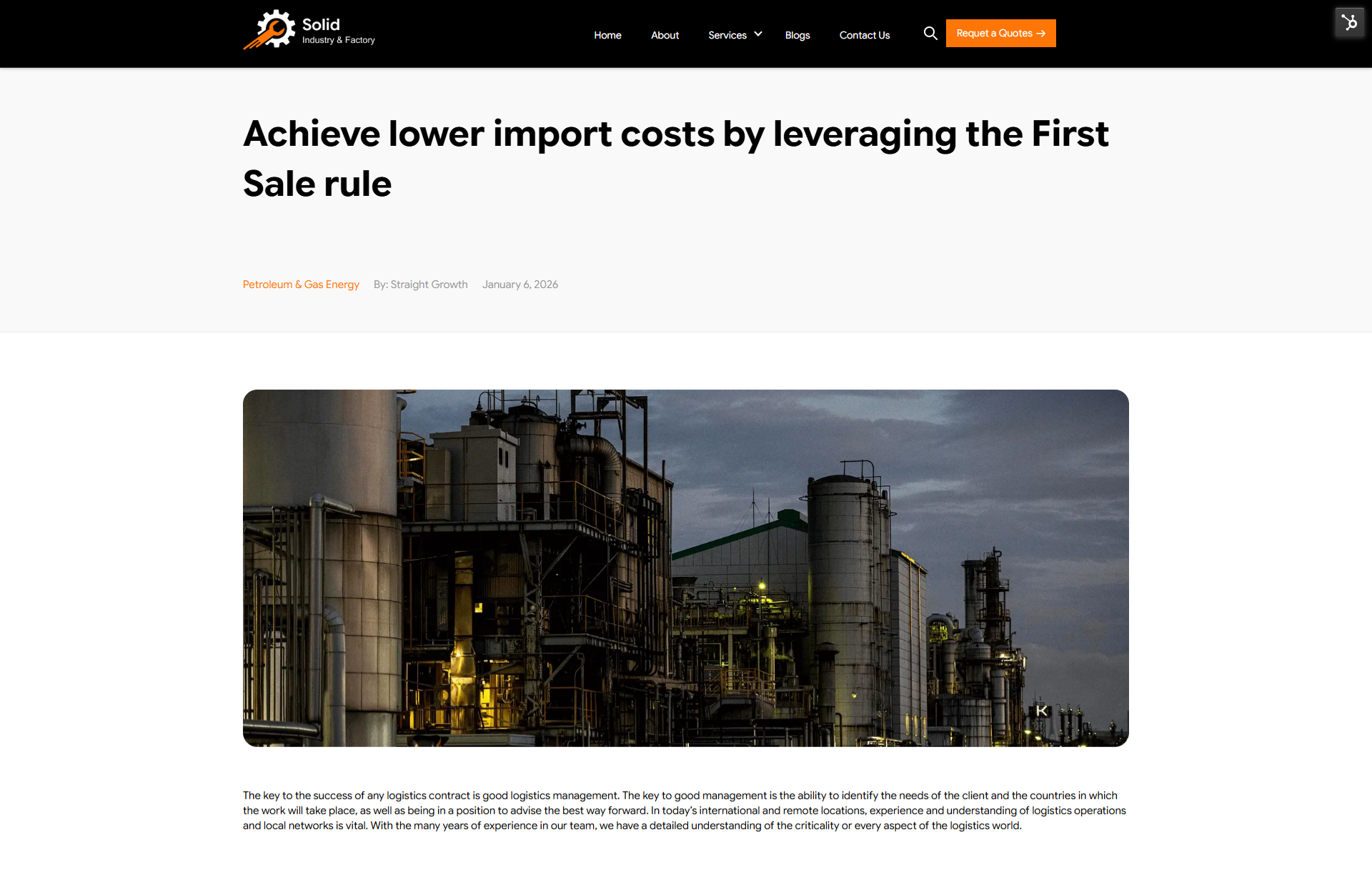
Blog Post Template
-
Click the Settings icon in the main navigation bar.
-
Navigate to Content > Blog.
-
In the Current View section, select the blog you want to edit.
-
In the Blog Post section, click Actions > Change template.
-
Select the Industry Theme – Blog Post Template.
-
Click Done, then Save.
Modules
In addition to theme settings, this theme includes custom and global modules that provide advanced content and styling flexibility.
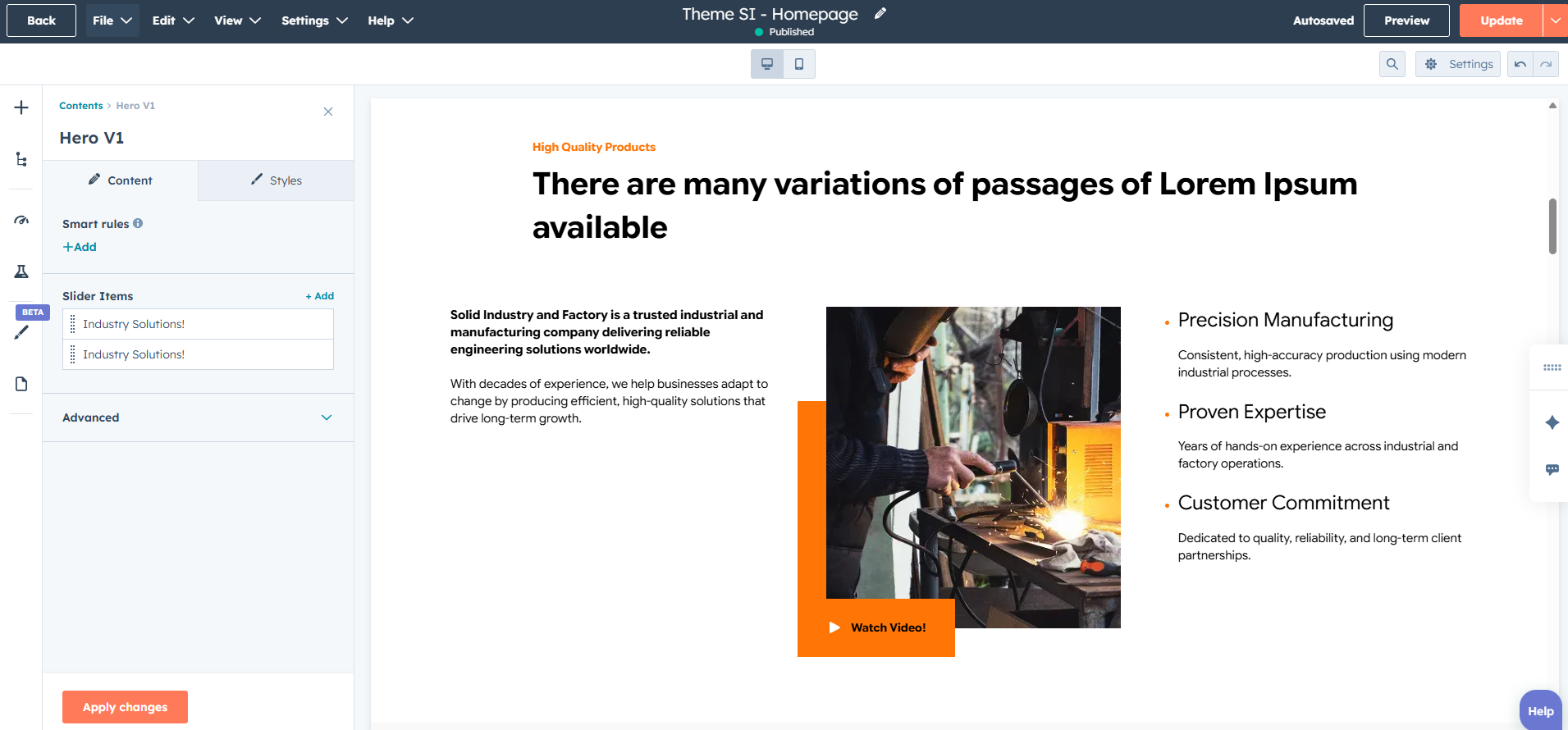
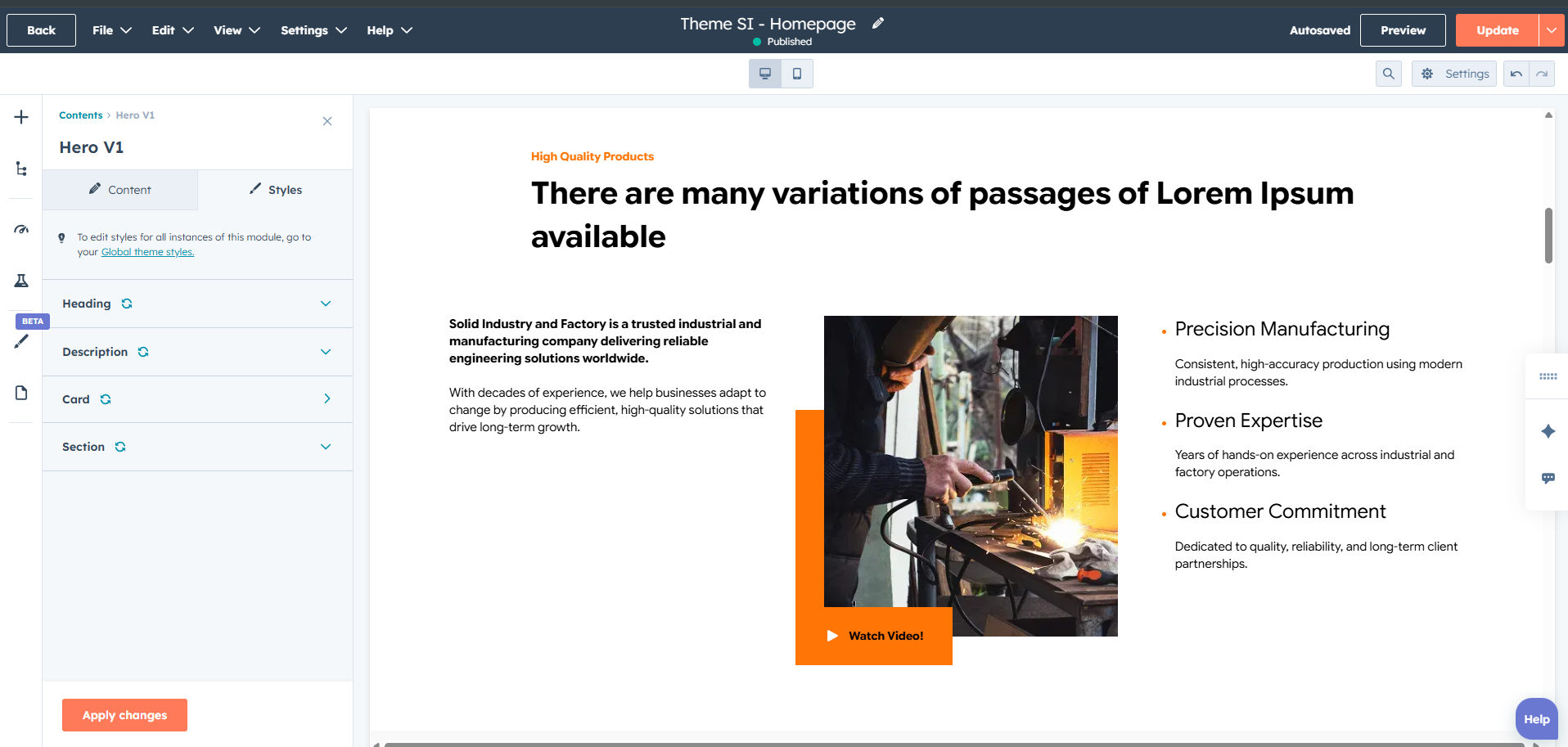
Module Content Update
While editing a page:
-
Click on a module.
-
Open the Content tab.
-
Update text, images, icons, or other content elements as required.
Module Style Update
To modify the appearance of a module:
-
Click on the module.
-
Open the Styles tab.
-
Customize fonts, colors, backgrounds, spacing, and other style options for individual elements.
Get Free Support
Need help setting up the theme or customizing modules further?
We offer FREE 1-hour support for all our HubSpot themes and modules.
📧 Mail Us: resource@straightgrowth.com
🌐 Visit Website: https://www.straightgrowth.com/
👉 Book Your Free Support Session with Straight Growth