


Renova Finance Theme Documentation
Renova Finance Theme by Straight Growth
Introducing Renova Finance — a modern, premium Finance & Consulting Website Theme for HubSpot, designed for financial consultants, advisory firms, accounting partners, wealth planners, fintech service providers, and corporate finance teams.
Whether you offer financial consulting, business advisory, accounting services, investment planning, audit support, or strategic finance guidance, Renova Finance helps you build a trusted, conversion-focused, and professional online presence.
Designed with a clean corporate aesthetic, strong typography, and clear page structure, Renova Finance includes fully customisable modules to help you present services, showcase expertise, build credibility with testimonials, and drive enquiries through well-placed CTAs and lead forms.
Built on HubSpot’s CMS, Renova Finance ensures easy content management, responsive design, and optimised performance across all devices. Its flexible setup allows effortless customisation to match your brand while maintaining a polished finance-first look.
Features
Key Features of Renova Finance
Renova Finance is a HubSpot theme built for finance and consulting brands. It offers structured layouts,
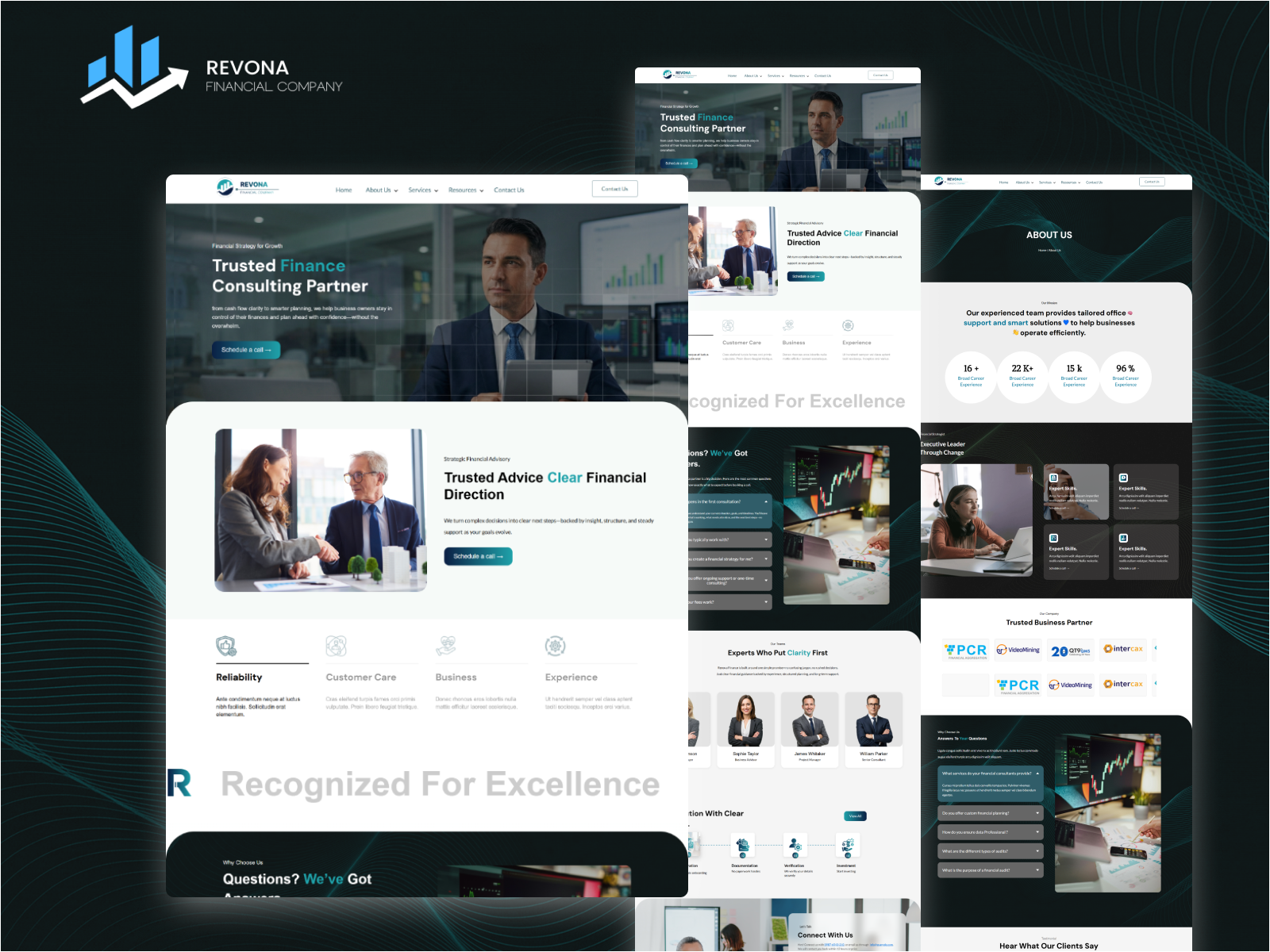 performFinance-Focused Design – Clean, professional layouts built to establish trust and credibility
-
Fully Responsive – Optimised for desktop, tablet, and mobile devices
-
Conversion-Ready Modules – Services, CTAs, testimonials, logos, FAQs, and more
-
Lead Generation Friendly – Contact, consultation, newsletter, and enquiry forms
-
Performance & SEO Ready – Fast loading and search-friendly structure
-
HubSpot CMS Powered – Secure, scalable, and easy to manage
1. Creating a Child Theme
By creating a child theme of the Renova Finance Marketplace theme, you can safely apply one-off customisations such as custom CSS, JavaScript, or modules—while still receiving future updates from the HubSpot Marketplace without losing your changes.
A child theme allows you to extend Renova Finance’s functionality while keeping the core theme intact and up to date.
Child Theme Files
When creating a child theme from Renova Finance in the Design Manager, the following files will be automatically added:
-
theme.json – Includes the required
extendsproperty linking the child theme to the Renova Finance parent theme -
child.css and child.js – Empty CSS and JavaScript files where you can add custom styles and scripts
These files only affect the child theme and can be renamed in the Advanced Options during setup.
How to Create a Child Theme
-
In your HubSpot account, navigate to Content → Design Tools
-
In the left sidebar, go to @marketplace → Renova Finance
-
Right-click on the Renova Finance theme and select Create child theme
-
Enter a name for your child theme, choose the destination folder, and click Create Child Theme
-
Once complete, a confirmation message will appear. Click Close to continue
2. Theme Settings
To customise your theme’s styling—including font, colours, buttons, and spacing—navigate to your theme settings. Any styles edited here will apply to all pages.
For any additional customisation options needed in theme settings, contact us at:
resource@straightgrowth.com
Follow these steps:
-
Click the settings icon in the main navigation bar of your HubSpot account
-
In the left sidebar menu, navigate to Content → Themes
-
Select your Renova Finance theme
Global Colours
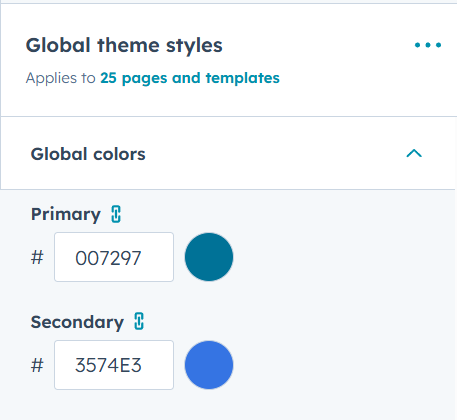
Here, you can customise and establish the colours that will represent your brand across the theme.
-
Primary Colour
-
Secondary Colour
-
Accent Colour
-
Background Colour
-
Border/Divider Colour
Global Fonts
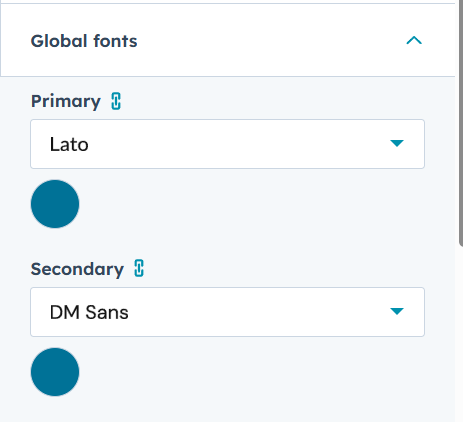
Here, you can set up the typography for your site. You can choose the typography settings for Primary Font (Body Texts) & Secondary Font (Headings). You can choose the Primary font from any Google Fonts and Its Color in the Primary font settings. You can choose the Secondary font from any Google Fonts and Its Color in the Secondary font settings.
-
Primary Font (Body Text) – Google Fonts + size + colour + weight + line height
-
Secondary Font (Headings) – Google Fonts + size + colour + weight + line height
Spacing
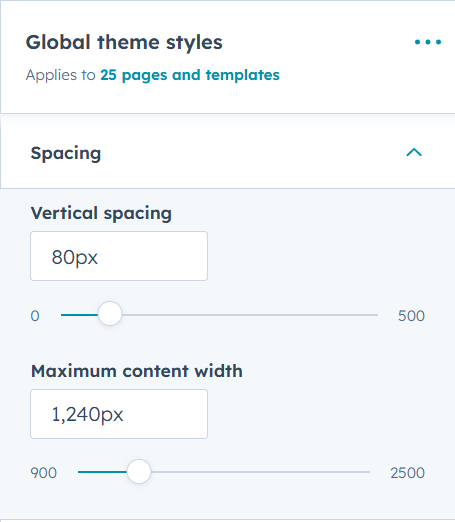
You can customise spacing globally here:
-
Container width
-
Section vertical spacing (top/bottom)
-
Horizontal padding (left/right)
Text
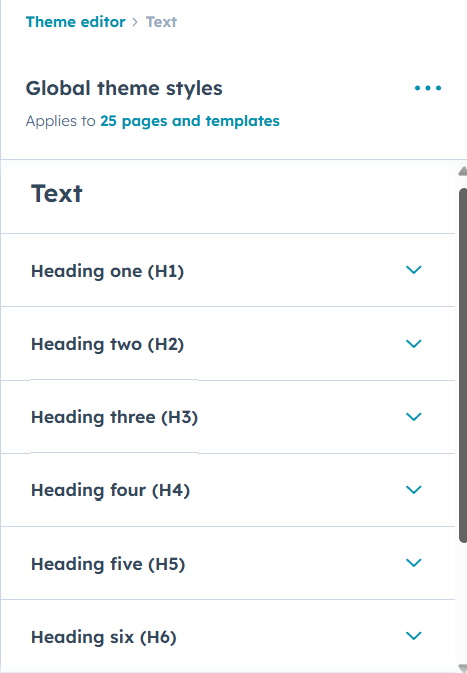
In this theme setting, you can customise:
-
Body text styling
-
Headings (H1–H6) styling
-
Link colour and link hover colour
Buttons
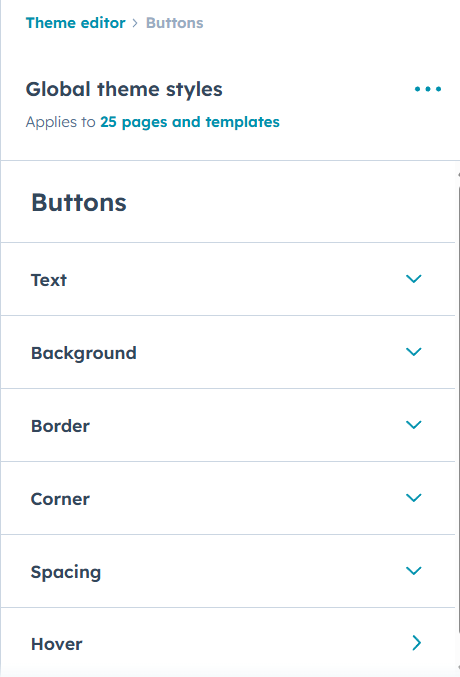
Define the global button styles here:
-
Primary button background, text colour, hover state
-
Secondary button background, text colour, hover state
-
Border radius, padding, font weight
Forms
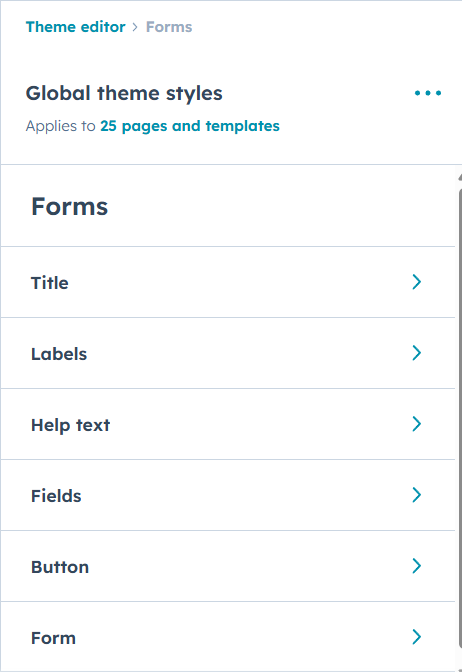
You can customise form styling inside these settings:
-
Form background colour
-
Field background colour
-
Placeholder colour
-
Label colour
-
Border colour, focus style, and button styles
Tables
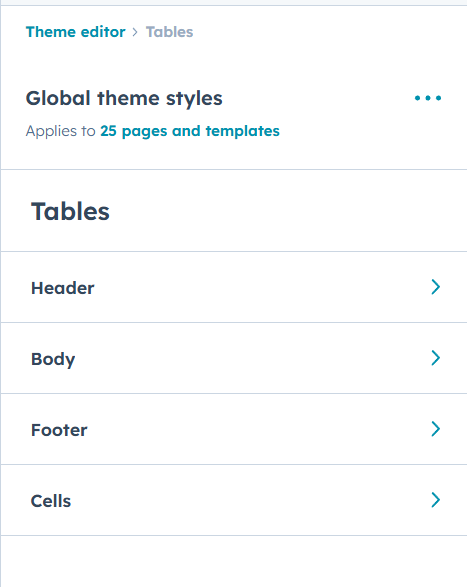
Here you can define the styles and look of the tables used in the theme:
-
Header background and text colour
-
Row border colour
-
Alternate row styling (optional)
Website Header
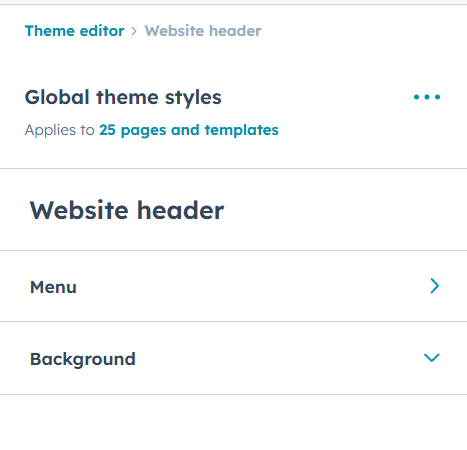
In the Website Header Settings, you can customise:
-
Header background colour
-
Text colour and menu link colour
-
Menu link hover colour
-
Dropdown icon colour
-
Dropdown background colour
-
Dropdown link colour and hover style
Website Footer
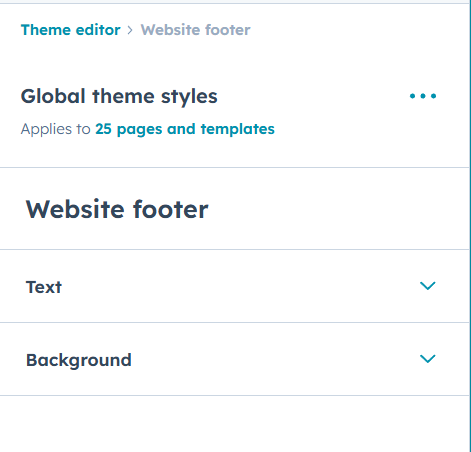
Here you can define the global style of the footer:
-
Footer background colour
-
Footer heading/text colours
-
Link styles and hover styles
-
Social icon styling
3. Page Templates
When creating a new page in HubSpot, you will have the option to choose from the available templates.
To access templates:
-
Log in to your HubSpot account and navigate to the Content menu
-
Click Website Pages or Landing Pages
-
Click Create
-
In the template selection step, choose from the Renova Finance templates
4. Blog Templates
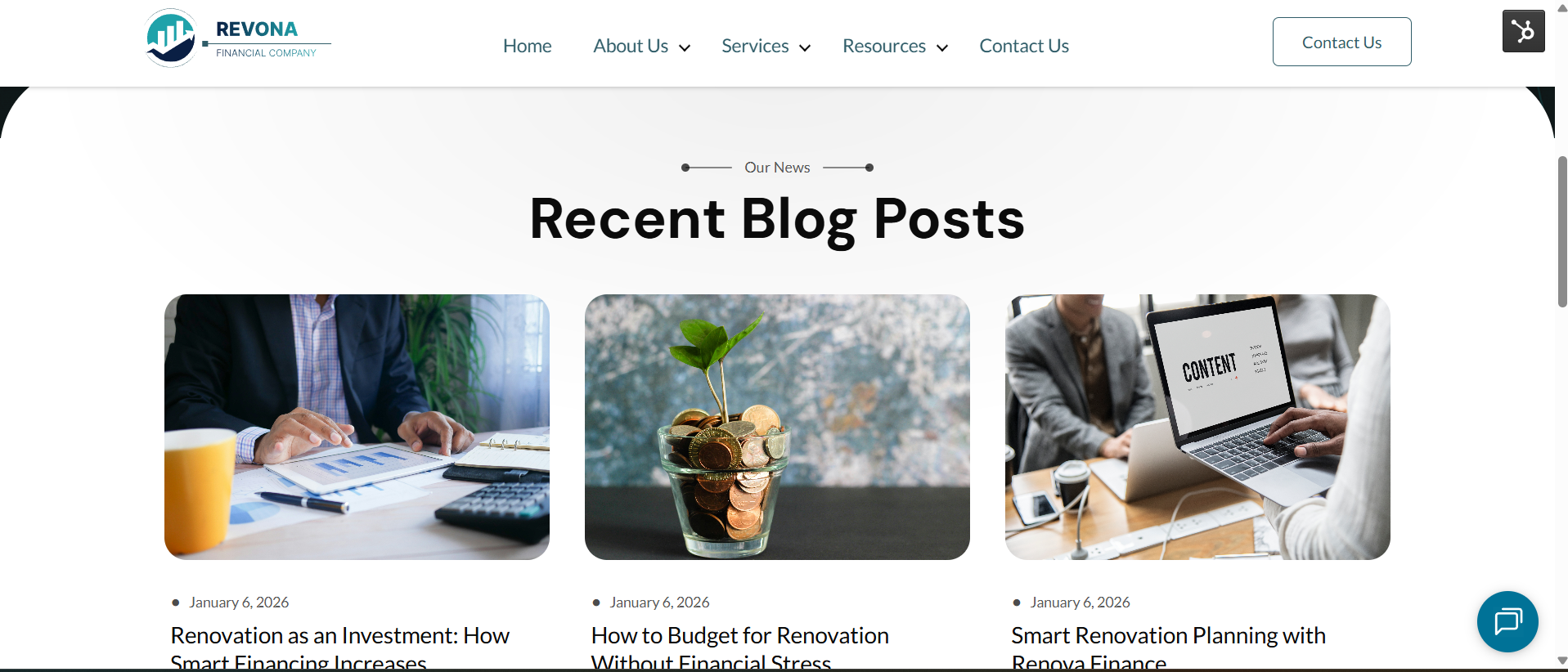
Blog Listing Template
-
Click the settings icon in the main navigation bar
-
In the left sidebar, navigate to Content → Blog
-
In the Current View section, select the blog you want to edit
-
In the Blog Listing section, click Actions → Change template
-
On the next screen, scroll down and click Advanced options
-
Select Use different template
-
On the theme selection screen, choose Renova Finance Blog Listing Page
-
Select your Blog Listing and click Use Template
Blog Post Template
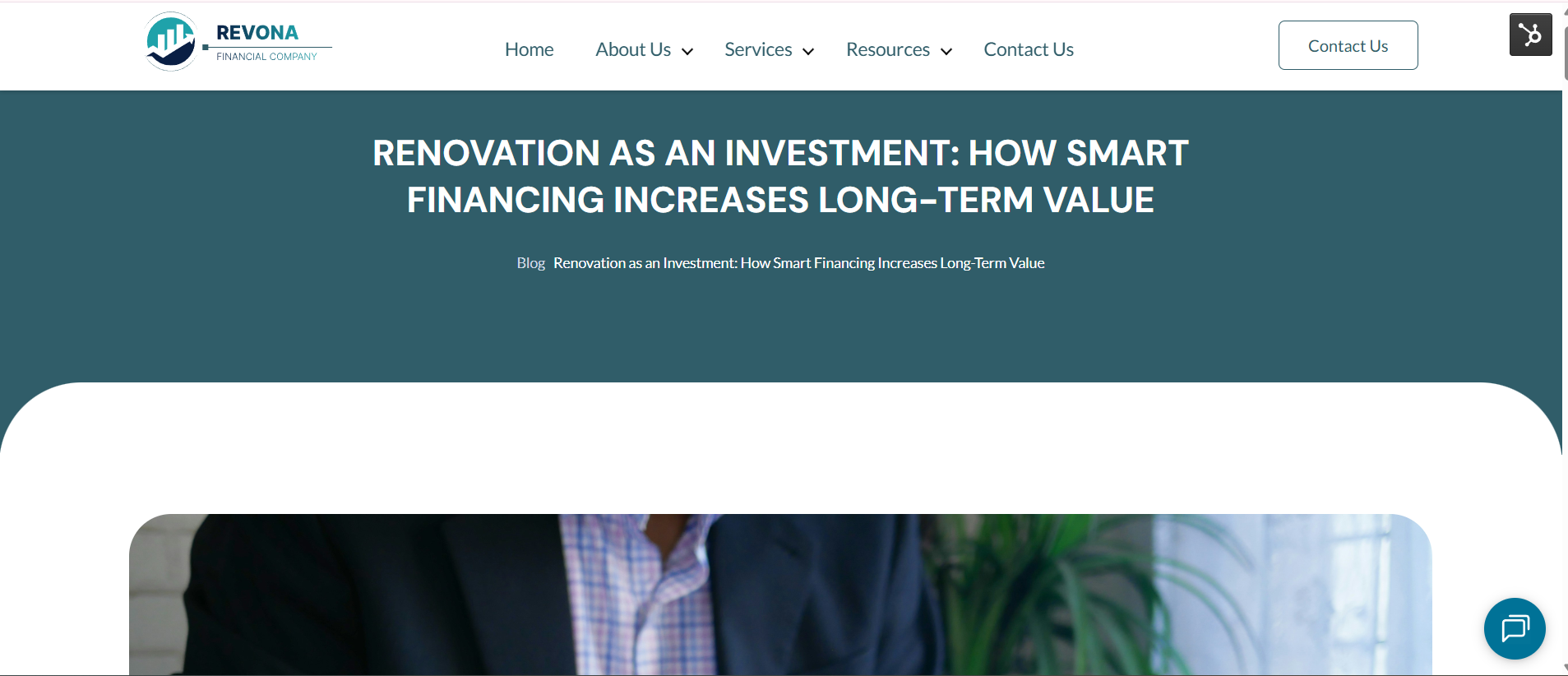
-
Click the settings icon in the main navigation bar
-
In the left sidebar, navigate to Content → Blog
-
In the Current View section, select the blog you want to edit
-
In the Blog Post section, click Actions → Change template
-
On the theme selection screen, select Renova Finance
-
Choose your Blog Post template, then click Done
-
In the bottom left of your template settings, click Save
6. Modules
Apart from the theme settings, we provide advanced customisation and content update options through custom & global modules.
For any additional custom modules or customisation needed in modules in the Renova Finance theme, contact us at:
resource@straightgrowth.com
Module Content Updation
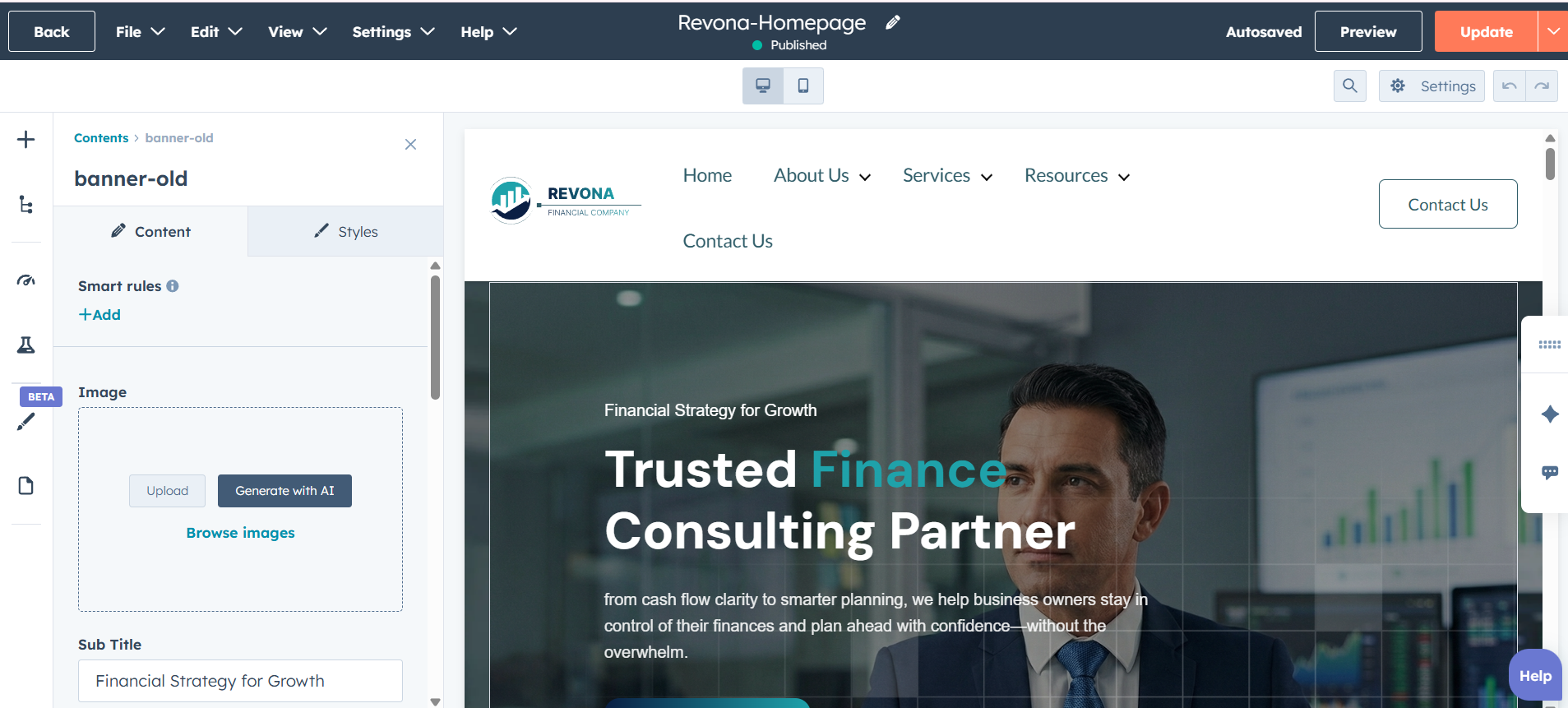
Inside the page editor:
-
Click on a module
-
Go to the Content tab
-
Update text, images, links, icons, and other module elements
Module Style Updation
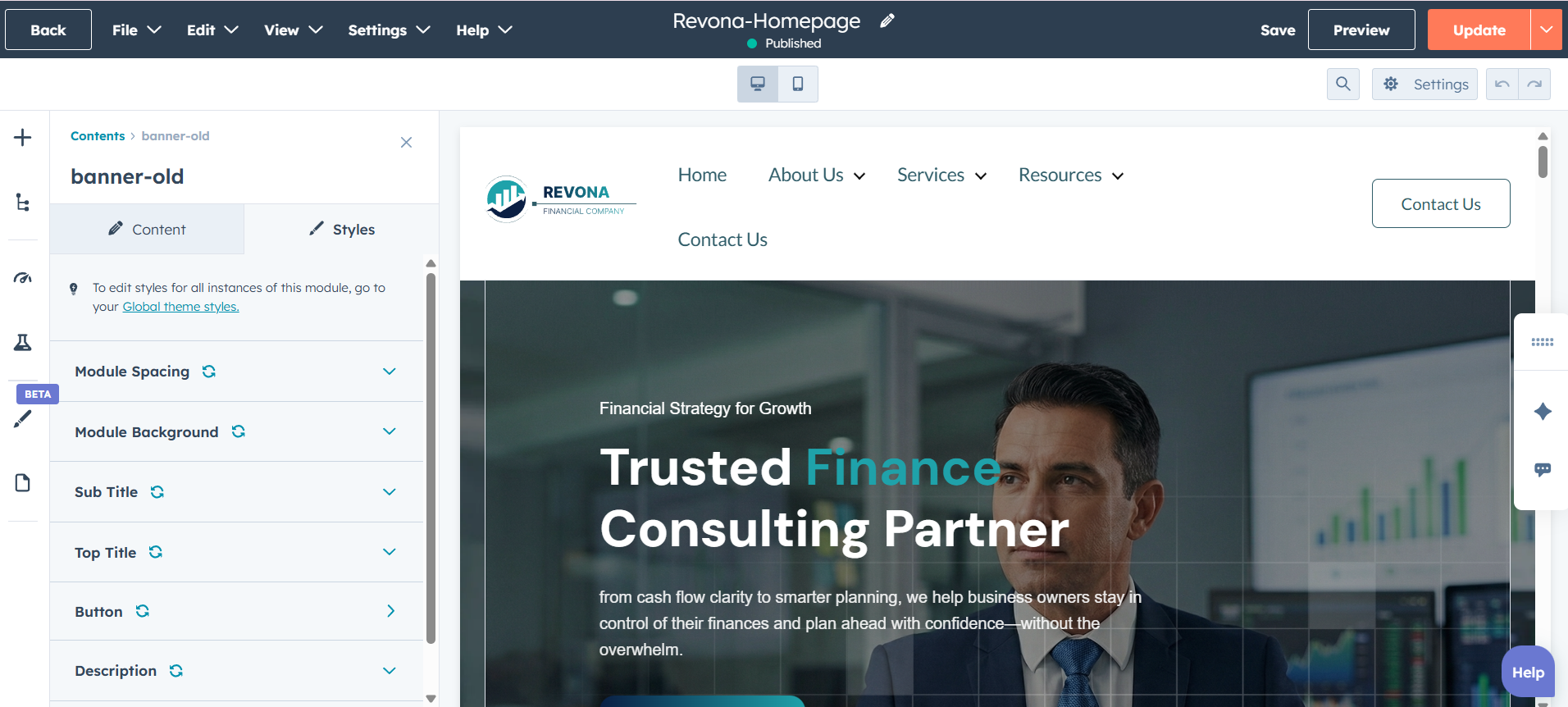
Inside the page editor:
-
Click on a module
-
Go to the Styles tab
-
Update fonts, colours, spacing, backgrounds, borders, and more.